> ## Documentation Index
> Fetch the complete documentation index at: https://docs.dibby.ai/llms.txt
> Use this file to discover all available pages before exploring further.
# Applications
> Organize and manage your business processes in one place
## What is an application?
An application in dibby is a complete workspace that brings together everything you need to automate a business process. Think of it as a folder that contains all the tools and information for a specific task.
## What's inside an application?
An application can contain:
* **Workflows** — One or more automated processes
* **Tables** — Data storage for your information
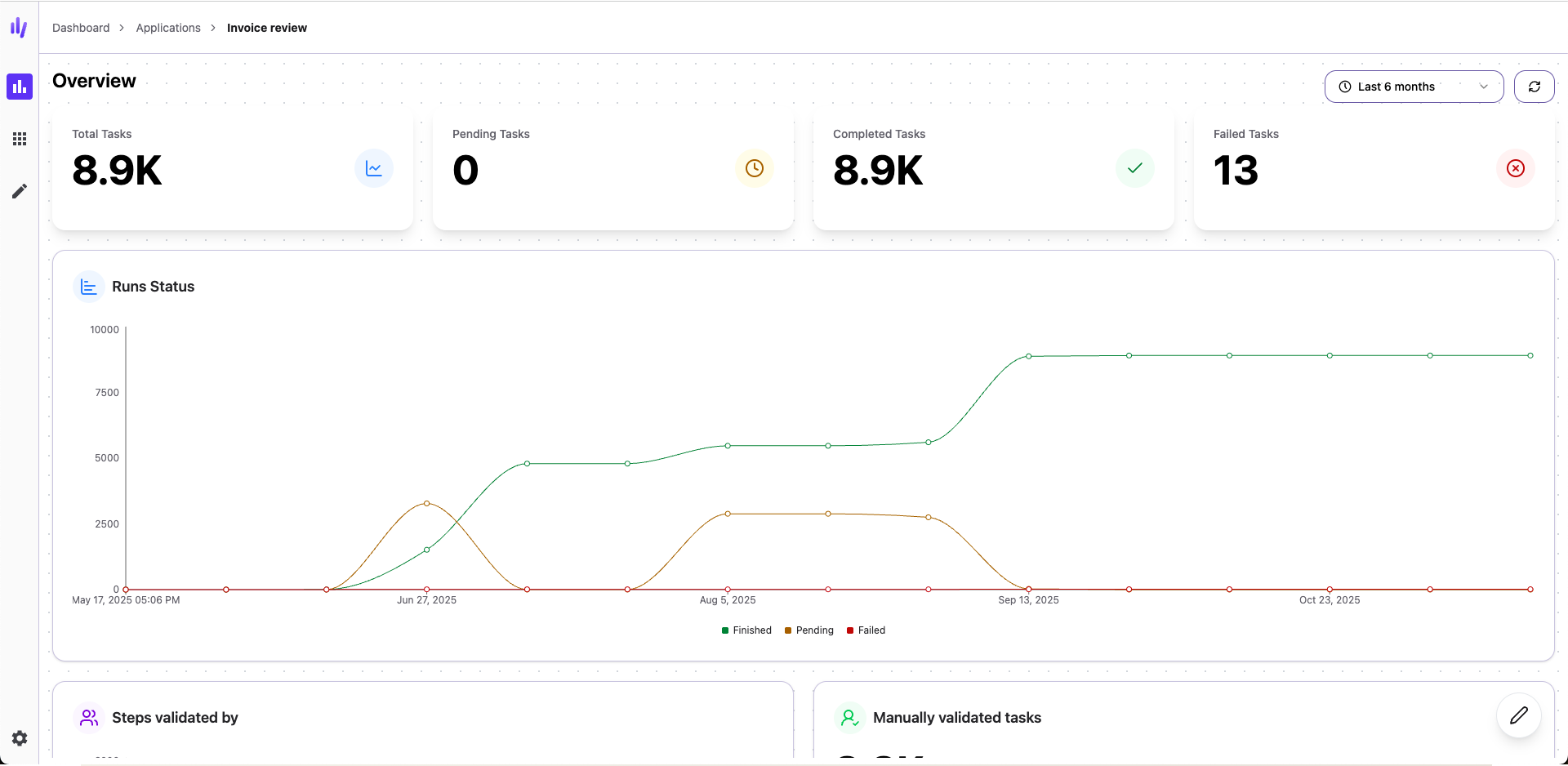
* **Reports** — Custom dashboards to track progress
* **Widgets** — Visual displays of your data
* **Validation queue** — Where you review and approve items
Everything related to your business process lives in one application, making it easy to manage and share with your team.
## Creating applications
You can create applications in two ways:
* **From scratch** — Build a custom application tailored to your exact needs
* **From the catalog** — Start with a ready-made application and customize it to fit your process
## What makes applications powerful
### Everything in one place
Instead of scattered workflows and data, applications keep everything organized:
* All workflows for a process are grouped together
* Data is stored in application-specific tables
* Team members know exactly where to find things
* Easy to track progress and performance
### Review and validate
Applications provide a centralized place to:
* Review items waiting for approval
* Validate data extracted by AI
* Assign tasks to team members
* Track what's been completed
### Share and collaborate
Applications make it easy to work with your team:
* Share access with team members
* Create custom widgets to display important information
* Generate reports everyone can view
* Collaborate on validation and review
### Monitor performance
Keep track of how your automation is working:
* View custom dashboards
* Check processing status
* Monitor success rates
* Identify bottlenecks
## Best practices
**Start simple**
Begin with one workflow and expand as needed. Don't try to build everything at once.
**Use clear names**
Name your applications, workflows, and tables clearly so everyone understands their purpose.
**Organize by process**
Create one application per business process, not per department or team.
**Review regularly**
Check your applications periodically to optimize performance and remove what you don't need.
**Share knowledge**
Document how your applications work so team members can use them effectively.
## Next steps
Learn how to build workflows for your applications
Understand how to store data in applications