> ## Documentation Index
> Fetch the complete documentation index at: https://docs.dibby.ai/llms.txt
> Use this file to discover all available pages before exploring further.
# Audit & Logs Overview
> Track and monitor all workflow activities
## Overview
The audit and logging system provides complete visibility into your workflow activities, helping you monitor performance, troubleshoot issues, and maintain compliance.
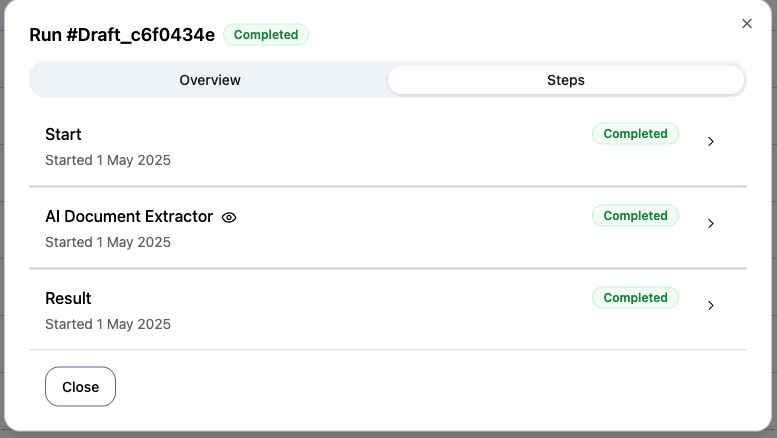
To see a run logs, click the eye icon in the run view:
This opens the logs interface:
## What gets logged
### Workflow executions
Every workflow run is logged with:
* Execution ID and timestamp
* Trigger source (manual, email, schedule, webhook)
* Input data
* Output results
* Status (success, failed, etc...)
### Node executions
Individual node execution details:
* Node type and configuration
* Input data received
* Output data produced
* Processing time
* Error messages (if any)
### User actions
Track user activities:
* Task completions
## Accessing logs
Navigate to the workflow run's section, click on the detail of the run and see details.
## Compliance
Audit logs support compliance requirements:
* Immutable record of all actions
* User accountability
* Data processing transparency
* Audit trail for regulatory requirements