Overview

Manage Organization
Organizations in dibby allow teams to collaborate on workflows, share resources, and manage access control. You can invite team members, assign roles, monitor credit usage, and manage billing all in one place.

Accessing your organization

Access your organization settings at: https://dibby.ai/organizations Or click on your avatar icon in the top right corner to select and configure your organization.

Team management

Inviting team members

Invite Member
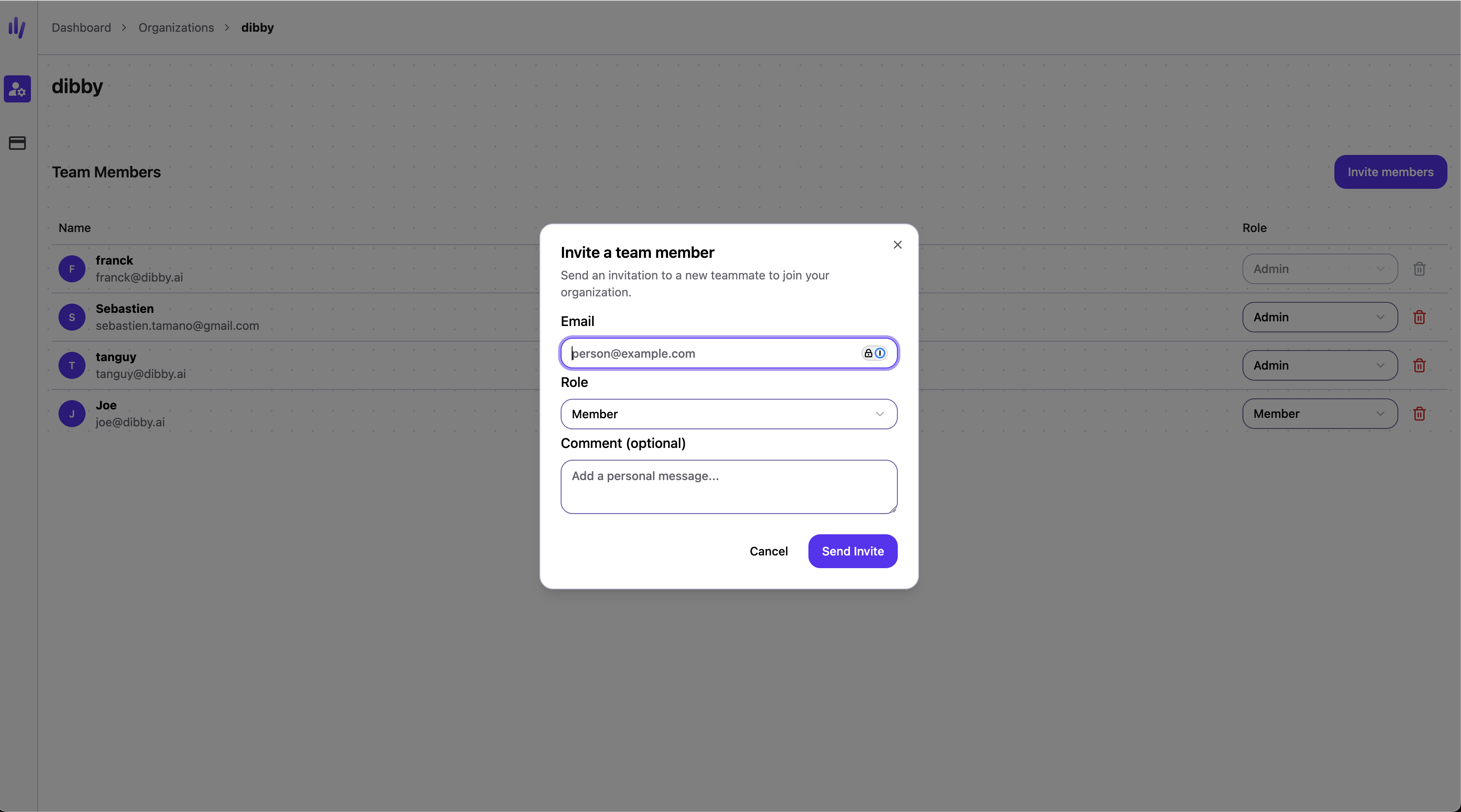
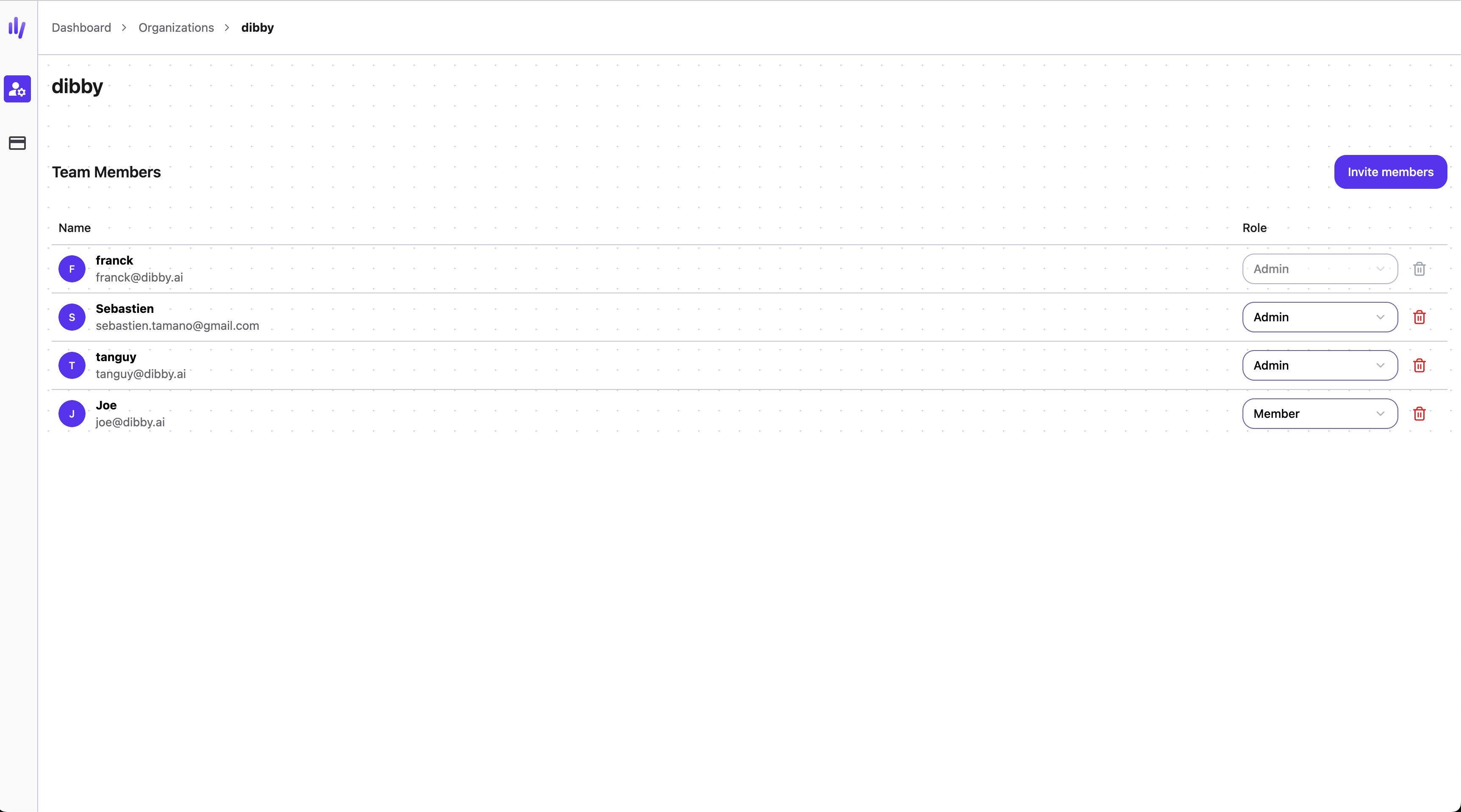
From your organization page, you can invite team members to collaborate on your workflows.
  1. Navigate to your organization settings
  2. Go to the team members section
  3. Click “Invite Member”
  4. Enter their email address and assign a role

User roles

dibby provides four distinct roles with different permission levels:

Admin

Full administrative access to the organization. Permissions:
  • Invite and manage team members
  • Assign and change user roles
  • Create and manage workflows
  • Access all applications and data
  • Configure organization settings
  • Manage billing and payments
Use when: Team leads or managers who need full control over the organization.

Member

Standard access for workflow creators and operators. Permissions:
  • Create and edit workflows
  • Run workflows
  • Access applications
  • View and edit data
  • Use validation queues
Use when: Team members who actively build and operate workflows.

Viewer

Read-only access to organization resources. Permissions:
  • View workflows (cannot edit)
  • View application data
  • View run history and logs
  • Access reports and dashboards
Cannot:
  • Create or modify workflows
  • Run workflows
  • Edit data
  • Access billing
Use when: Stakeholders who need visibility but shouldn’t make changes.

Billing

Access to billing and financial information only. Permissions:
  • View credit usage
  • Access invoices
  • Manage payment methods
  • View billing history
  • Update billing information
Cannot:
  • Access workflows
  • View application data
  • Invite or manage team members
Use when: Finance team members who handle payments and invoicing.

Organization dashboard

Your organization page provides visibility into usage and billing:

Credit usage

Monitor your organization’s credit consumption:
  • Current credit balance
  • Remaining credits in your plan

Billing & invoices

Access all billing information:
  • Current subscription plan
  • Payment methods
  • Billing history
  • Download invoices
  • View upcoming charges
  • Upgrade or downgrade plans

Best practices

Assign appropriate roles Give team members the minimum permissions they need. Use Viewer role for stakeholders who only need visibility. Regular access reviews Periodically review who has access to your organization and remove users who no longer need it. Monitor credit usage Track credit consumption to avoid unexpected costs and optimize workflow efficiency. Keep billing info updated Ensure payment methods and billing contacts are current to avoid service interruptions. Document team structure Maintain clear documentation of who has access and why, especially for compliance purposes.