
Overview
Things don’t always go as planned. When a node in your workflow encounters an error, you need to decide what should happen next. Dibby gives you control over error handling at the node level, so you can build resilient workflows. To configure error handling for a node, click the shield icon in the node toolbar: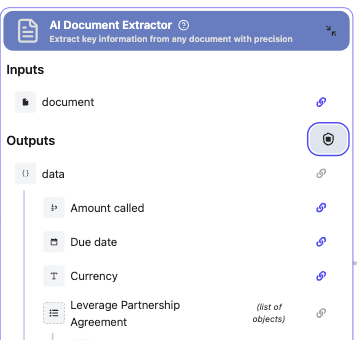
Error Handling Options
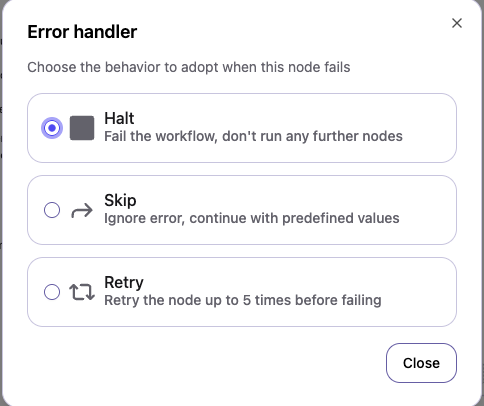
Each node in your workflow can be configured with one of three error handling strategies:Halt (default option)
Stop everything when an error occurs. When a node fails, the entire workflow stops immediately. No further nodes are executed. Use when:- The error is critical and you need to fix it before continuing
- Data integrity is essential
- You want immediate notification of problems
- Manual intervention is required
Skip
Ignore the error and continue with default values. When a node fails, skip it and continue to the next node using predefined fallback values. Use when:- The node is optional
- You have sensible default values
- The workflow can continue without this data
- You want maximum uptime
Retry
Try again automatically up to 5 times. When a node fails, Dibby automatically retries it up to 5 times with increasing delays between attempts. Use when:- The error might be temporary (network issues, rate limits)
- External services might be briefly unavailable
- You want to recover from transient failures automatically
Configuring Error Handling
When you add a node to your workflow, you can select the error handling strategy in the node settings:- Click on the node
- Click the shield icon in the toolbar
- Choose: Halt, Skip, or Retry
- If using Skip, define fallback values
Choose the Right Strategy
Halt when:- Data accuracy is critical
- Manual intervention is needed
- Errors indicate serious problems
- The operation is optional
- You have good fallback values
- Uptime is more important than completeness
- Errors are likely temporary
- External services are involved
- You want automatic recovery
Set Appropriate Fallback Values
When using Skip, define sensible defaults:- Empty string for optional text fields
- Zero for optional numbers
- Current date for timestamps
- “Unknown” for categories
Error Recovery
When a workflow fails:- Check the logs — See which node failed and why
- Review the error message — Understand what went wrong
- Fix the root cause — Update configuration, reconnect integrations, or fix data
- Retry the workflow — Run it again with the same inputs
- Monitor the next runs — Make sure the fix worked
Next Steps
Audit & Logs
Monitor workflow execution and track errors
Condition Node
Build conditional logic for error handling